
Uploading Your PDT File
Follow these steps to upload your PDT file to the BeneMoney Admin Portal.
Step 1. Navigate to the PDT Upload Page
- Log into your BeneMoney Admin Portal.
- Select HR Management from the left menu.
- Click Upload PDT File.
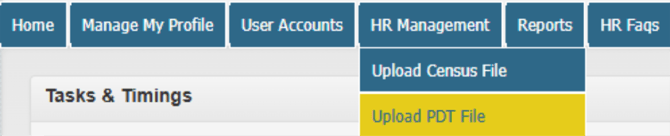
You will land on the Payroll Deductions Taken Data Wizard page.
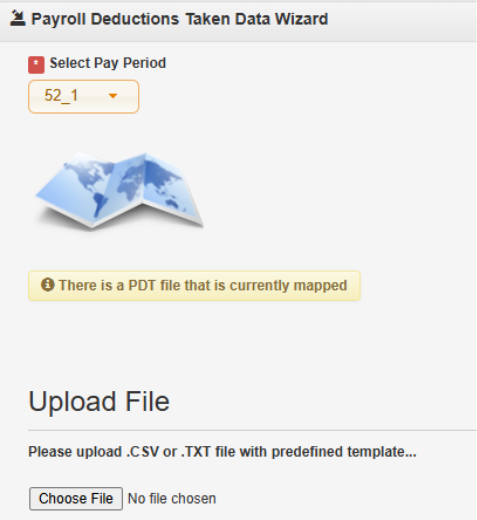
Step 2. Select and Upload Your File
- If you have multiple pay periods, Select the corresponding pay period.
- Click Choose File.
- Select your .csv or .txt PDT file.
- Click Upload File.
The system will begin processing your file automatically.
Step 3. System Validation
The system will:
- Validate that all payroll dates and deduction amounts are valid.
- Ensure no duplicate PDT file already exists for that payroll date.
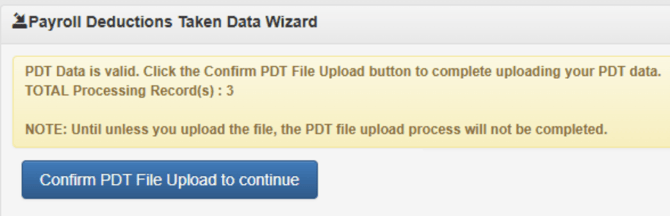
If the file passes validation, you will see:
If the file does NOT pass Validation, you will receive an error message in red indicating what did pass.

Please reach out to accountmanagement@benemoney.com if you get stuck with this error message.
Step 4. Confirm the Upload
To complete the process:
- Review the displayed record count.
- Click Confirm PDT File Upload to continue.
Important: Your PDT file is not fully uploaded until you click through the confirmation button and an additional pop up where you must select “ok”