
Table of Contents:
-
What is a PDT File?
-
Formatting a PDT
-
What to do with your PDT
-
Uploading your PDT
What Is a PDT File?
The Payroll Deductions Taken (PDT) File is a comma‑delimited (.csv or .txt) file generated by your payroll system. It contains the actual deduction amounts taken from employees’ paychecks for a specific payroll period. A PDT file must be submitted every time you run payroll.
BeneMoney uses the PDT file to:
- Compare expected deductions to actual deductions
- Identify missed or partial deductions
- Reconcile employee loan balances
Formatting a PDT
To ensure that your PDT file uploads successfully, it must follow specific formatting rules.
- File Type: .csv or .txt
- Format: Comma‑delimited
- File Name: YourFileName.PDT.csv
- Example File Name: YourCompanyPayrollDate.PDT.csv
Required Fields
Every row must include:
- Pay Date (employee’s check date)
- Employee First Name
- Employee Last Name
- Employee ID / Employee Number
- Actual Deduction Amount
- BeneMoney Deduction Code (Required if employees are allowed more than one loan at a time)
- Payroll Frequency (Required if more than one payroll cycle)
- Payroll Calendar Code (Required if more than one payroll cycle)
- Loan Number (Optional)
File Headers
- Your column headers do NOT need to match BeneMoney’s exactly.
- We map your headers to our system during implementation.
- If you change or rename headers, notify BeneMoney so we can remap.
Example PDT File

Headers: PayDate, FirstName, LastName, EmployeeID, ActualDeductionAmount, LoanNumber, DeductionCode
Row 1: 2/15/2026, John, Doe, 12345, 47.45, 5000049183, BENE1
Row 2: 2/15/2026, Jane, Smith, 67890, 47.16, 5000049222, BENE1
Common Formatting Issues to Avoid
- Missing or incorrect payroll dates
- Employee IDs or Names that don’t match your Census File
- Blank deduction amounts
- Changing headers without notification
What To Do With Your PDT File
Once you’ve completed payroll:
- Generate the PDT file from your payroll system.
- Review deduction amounts for accuracy.
- Save the file as a .csv or .txt.
- Prepare to upload it through the BeneMoney Admin Portal.
Uploading Your PDT File
Follow these steps to upload your PDT file to the BeneMoney Admin Portal.
Step 1. Navigate to the PDT Upload Page
- Log into your BeneMoney Admin Portal.
- Select HR Management from the left menu.
- Click Upload PDT File.
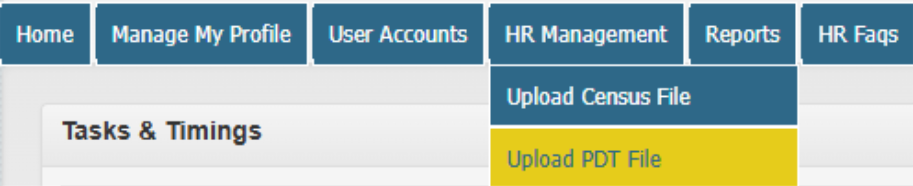
You will land on the Payroll Deductions Taken Data Wizard page.
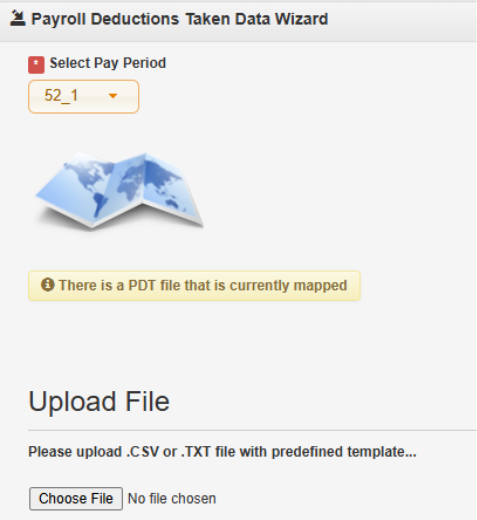
Step 2. Select and Upload Your File
- If you have multiple pay periods, Select the corresponding pay period.
- Click Choose File.
- Select your .csv or .txt PDT file.
- Click Upload File.
The system will begin processing your file automatically.
Step 3. System Validation
The system will:
- Validate that all payroll dates and deduction amounts are valid.
- Ensure no duplicate PDT file already exists for that payroll date.
If the file passes validation, you will see:
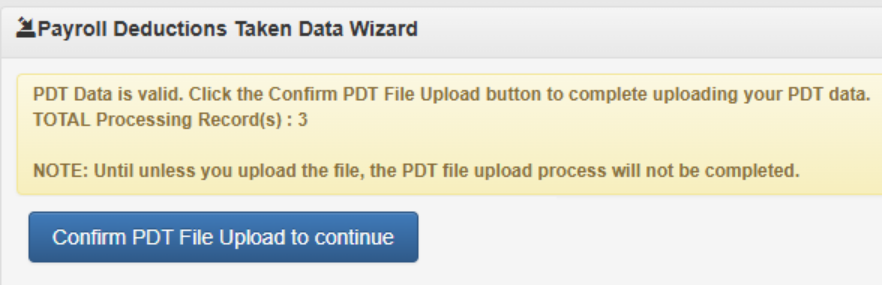
If the file does NOT pass Validation, you will receive an error message in red indicating what did pass.

Please reach out to accountmanagement@benemoney.com if you get stuck with this error message.
Step 4. Confirm the Upload
To complete the process:
- Review the displayed record count.
- Click Confirm PDT File Upload to continue.
Important: Your PDT file is not fully uploaded until you click through the confirmation button and an additional pop up where you must select “ok”