
Reporting a Termination
This page explains how HR administrators can manually report an employee termination in the BeneMoney Admin Portal. Please Note: terminations occur automatically when an employee is removed from your Census File, but manual reporting is available when you need to immediately stop deductions or ensure accurate processing before the next census upload.
When to Manually Report a Termination
You should use this feature when:
- You need deductions to stop right away
- You want to update the employee’s status before your next Census File upload
- The employee has left and has active loans requiring payroll coordination
How to Report a Termination
- Log into your BeneMoney Portal.
- Navigate to HR Management in the menu.
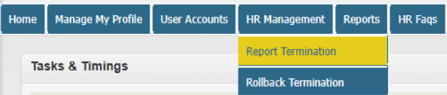
- Select Report Termination.
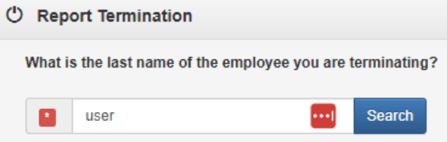
- Enter the employee’s last name, then select Search.
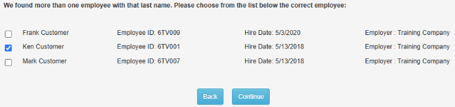
- Choose the correct employee from the list and click Continue.
If the Employee Has Active Loans
If active loans exist, the system will display:
- Loan numbers
- Outstanding balance
- Suggested final paycheck deduction amounts
Next steps:
-
Review the information provided.
-
Click Complete Termination.
-
Print the Remittance Form if needed for loan payoff details.
If the Employee Has No Active Loans
You’ll see a simple confirmation screen.
- Click Continue to finalize the termination.
Confirmation
Once submitted, the system confirms the termination and sends an email notification for your records.