Creating a New HR Admin User
Follow these steps to add a new HR administrator:
- Navigate to User Accounts and choose Create Users.
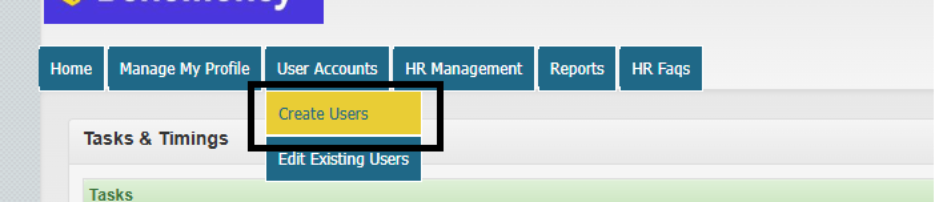
- On the Create User screen:
- Select User Type: Choose HR Admin.
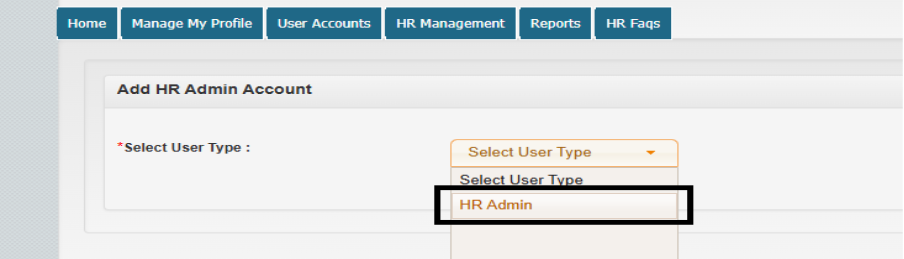
- Select User Type: Choose HR Admin.
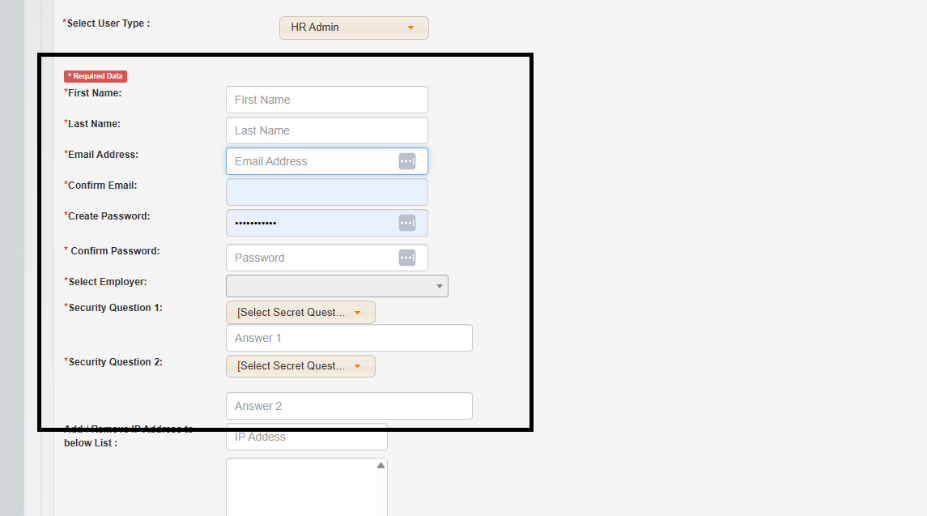
- Enter all required information (marked with an asterisk *), including:
- First Name
- Last Name
- Email Address
- Password
- Security Questions
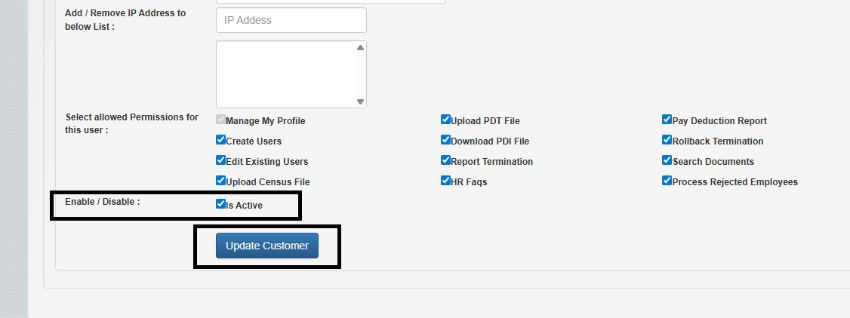
- Assign Permissions: Check each feature this user should be able to access.
- Any permission left unchecked will not appear in their menu.
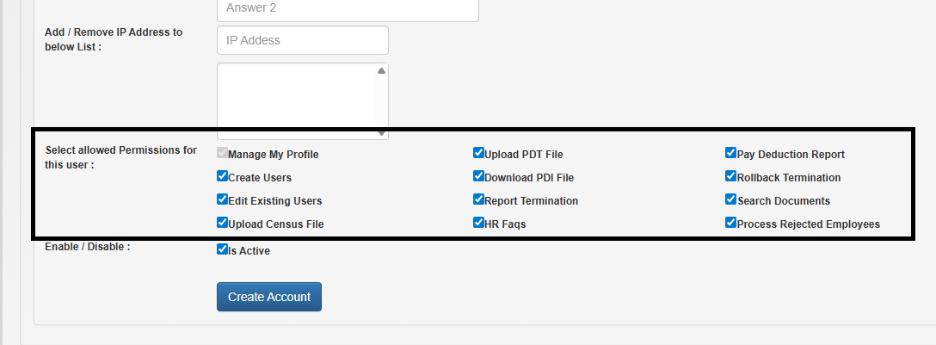
- Any permission left unchecked will not appear in their menu.
- Select Is Active for Enable/Disable
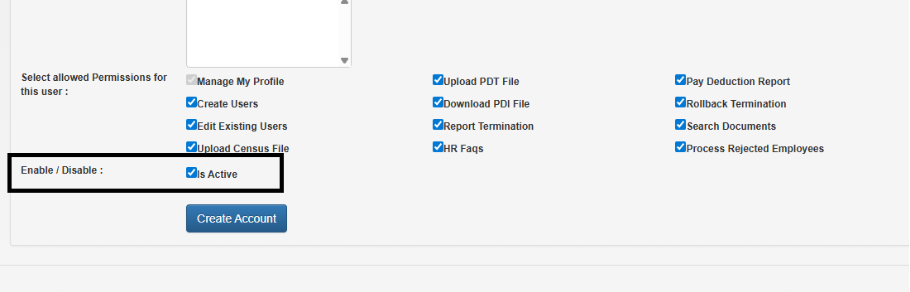
- Click Create Account to finalize.
Editing an Existing HR User
Use this feature to update a user's info or modify their permissions.
- Navigate to User Accounts and select Edit Existing Users.
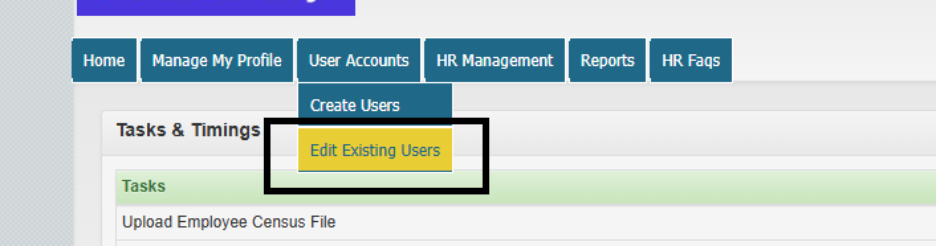
- Enter the user’s email address (username) and click Search.
- If valid, their information will load.
- If not, the system will display an error message.

- Update any details as needed, including:
- Permissions
- Contact information
- Access settings
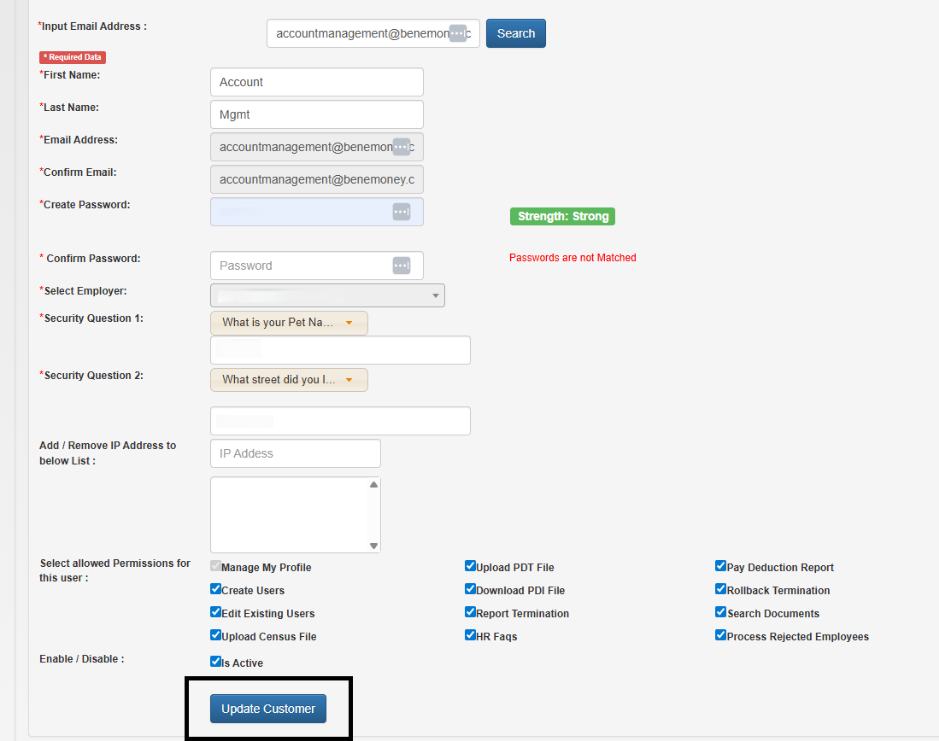
- Click Update to save changes.
Disabling or Enabling a User
To manage user access:
- Open the user’s profile via Edit Existing Users.
- Use the Disable/Enable checkbox:
- Checked → The account is active.
- Unchecked → The account is disabled.
- Click Update Customer to save.